
How to bind scroll wheel to jump in CS2 – Pro Config (2026)
How to bind pular no scroll in CS2. Complete guide to set up jump on mouse wheel with console commands, autoexec config, and pro player settings for 2026.

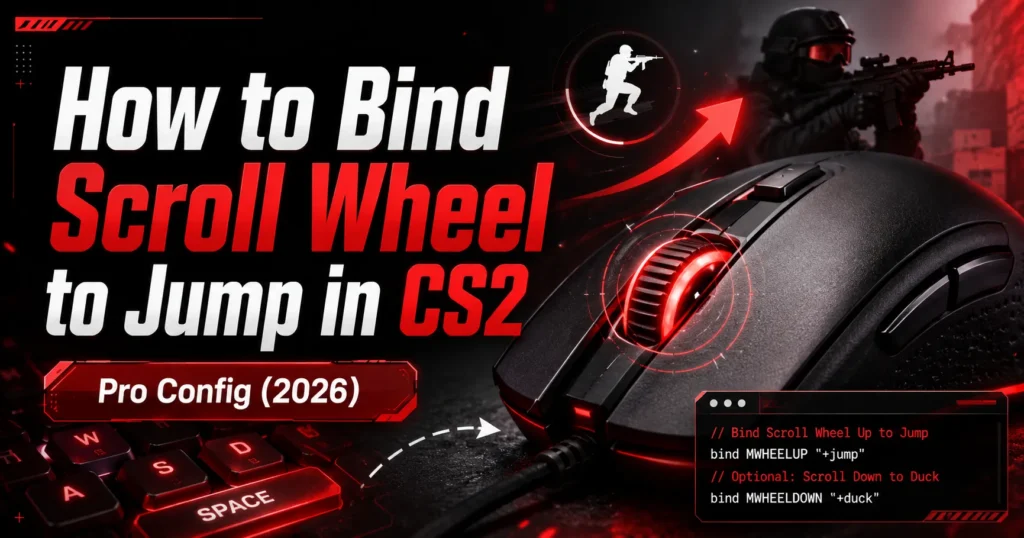
Every pro player binds jump to the scroll wheel in CS2. The reason is simple. The scroll wheel fires multiple inputs per notch. That gives you several chances to hit the jump at the exact right moment. Spacebar gives you one chance. Scroll gives you many.
This guide shows you how to bind pular no scroll cs2 step by step. Console commands. Autoexec setup. And how to keep spacebar as backup.
Quick Setup: The Commands You Need
Open your CS2 console (press ~) and paste these commands:
| Command | What It Does |
|---|---|
bind mwheeldown +jump |
Jump when you scroll down |
bind mwheelup +jump |
Jump when you scroll up |
bind space +jump |
Keep spacebar as jump backup |
That’s it. Three commands. Paste them. Done. You now jump on both scroll directions plus spacebar.
Most players use scroll down only. It feels more natural. Your finger already rests above the wheel. One quick scroll and you jump. If you prefer scroll up, that works too. Personal preference.
Step-by-Step Setup
Step 1: Enable Console
Go to Settings. Select Game. Find “Enable Developer Console.” Set it to Yes. Now you press the tilde key (~) to open the console anytime during a game.
Step 2: Open Console
Press ~ while in-game or on the main menu. A text input box appears at the top of your screen.
Step 3: Enter the Bind Command
Type or paste:
bind mwheeldown "+jump"; bind mwheelup "+jump"
Press Enter. The bind activates immediately. Test it by scrolling your mouse wheel. Your character jumps.
Step 4: Keep Spacebar (Optional)
If you want spacebar to still work as jump, type:
bind space "+jump"
Now you have three ways to jump: scroll down, scroll up, and spacebar. Most pros keep spacebar as backup for regular jumping and use scroll for precise timing.
Make It Permanent with Autoexec
Console binds reset when you restart CS2. To make them permanent, add them to your autoexec file.
Find Your Config Folder
Navigate to:
C:Program Files (x86)SteamsteamappscommonCounter-Strike Global Offensivegamecsgocfg
Create or Edit Autoexec
Open the file autoexec.cfg with Notepad. If it doesn’t exist, create a new text file and rename it to autoexec.cfg.
Add these lines:
bind mwheeldown "+jump"
bind mwheelup "+jump"
bind space "+jump"
Save the file. CS2 loads this config automatically on startup. Your jump binds stay active forever.
Why Pros Use Scroll Wheel Jump
Bunny hopping. Scroll wheel fires multiple jump inputs in quick succession. That makes bunny hop timing much easier. Spacebar gives you one input. Scroll gives you 3 to 5 per flick.
Jump throws. Grenade jump throws require releasing the grenade at the exact jump frame. Scroll wheel increases your chances of hitting that frame. More inputs equal better timing.
Surf and BHOP maps. Community server modes like surf and BHOP rely on precise jump timing. Scroll wheel makes these modes playable. Spacebar makes them frustrating.
Consistency. Scroll wheel produces the same result every time. Spacebar timing varies based on how long you hold it. Scroll is binary: spin and jump. No variation.
Is This Bind Allowed?
Yes. Binding jump to scroll wheel is 100% allowed in CS2 matchmaking, Premier mode, and FACEIT. Valve permits any bind that combines actions a human could perform manually. Every professional player uses this bind. No risk of ban.
Common Mistakes
Forgetting to save in autoexec. Console binds disappear on restart. Always save to autoexec if you want them permanent.
Unbinding scroll wheel from weapon switch. By default, scroll wheel switches weapons. Binding it to jump replaces that function. Use number keys (1, 2, 3) for weapon switching instead. Every pro does this.
Using both directions when you only need one. Some players find it confusing to jump on both scroll up and down. Try scroll down only first. Add scroll up later if you want it.
Other Useful Binds
| Bind | Command | Purpose |
|---|---|---|
| Jump throw | alias "+jumpthrow" "+jump;-attack"; alias "-jumpthrow" "-jump"; bind "v" "+jumpthrow" |
One-key grenade jump throws |
| Clear decals | bind "shift" "+speed; r_cleardecals" |
Remove blood splatters on shift |
| Quick switch | bind "q" "slot1" |
Switch to primary weapon instantly |
Want to practice these binds on community servers? Check our CS2 community servers guide for the best BHOP and surf servers.
Earn free skins while you practice on Xplay.gg servers.
For CS2 gambling platforms, see our CS2 gambling sites overview.
FAQ
How do I bind jump to scroll wheel in CS2?
Open console (~) and type: bind mwheeldown "+jump". Add to autoexec.cfg for permanent setup.
Is scroll wheel jump allowed in CS2?
Yes. Allowed in matchmaking, Premier, and FACEIT. Every professional player uses it. No ban risk.
Should I use scroll up or scroll down?
Most pros use scroll down. It feels more natural. But both work. Personal preference.
Does this bind work on FACEIT?
Yes. FACEIT allows all standard console binds including scroll wheel jump.
How do I make the bind permanent?
Add the command to your autoexec.cfg file in the CS2 cfg folder. The game loads it automatically on every startup.