
Steam Family Sharing – How to Share Your Game Library
How to set up Steam Families in 2026. Share your game library with up to 5 people. Setup steps, rules, parental controls, restrictions, and troubleshooting.

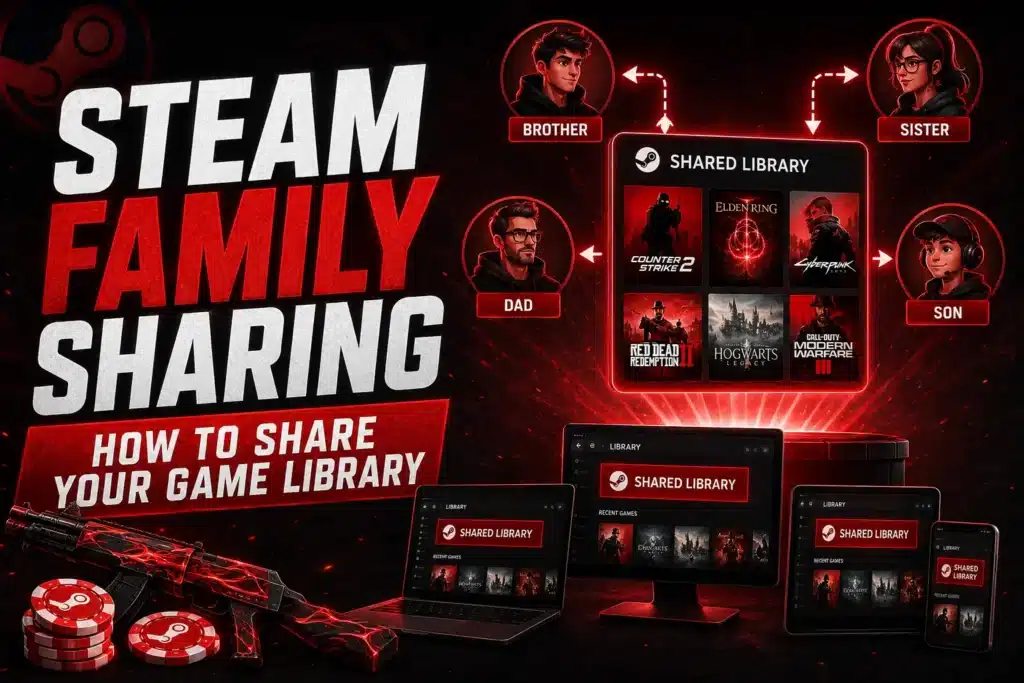
Steam Families lets you share your game library with up to 5 other people. They get access to your games, you get access to theirs, and multiple people can play different games from the shared pool at the same time.
Here’s how to set it up, what the rules are, and what changed when Valve replaced the old system in 2024.
What Changed in 2024 (Old System vs. New)
Valve overhauled game sharing in 2024. The old “Steam Family Sharing” and “Steam Family View” were merged into one system called “Steam Families.” Key differences:
Old system (pre-2024):
- Only one person could access a shared library at a time. If you were playing, nobody else could touch your library.
- You had to physically log into the other person’s PC to authorize sharing.
- Parental controls were a separate feature (Family View).
- Sharing was between individual accounts, not a group.
New system (2024+):
- Multiple family members can play different games from the shared pool simultaneously.
- Remote invites via friends list or invite code. No physical PC access needed.
- Parental controls are built in (Adult vs. Child roles).
- Up to 6 people in one family group with pooled libraries.
The simultaneous access change was the biggest improvement. Before 2024, sharing was impractical because one person playing locked out everyone else. That restriction is gone.
How to Set Up Steam Families (Step by Step)
Step 1: Open Family Management
Open the Steam client. Click your profile name in the top right corner. Select “Account Details.” Navigate to the “Family Management” tab.
Step 2: Create a Family
Click “Create a Family.” Name the group whatever you want. You’re now the family owner with full admin privileges.
Step 3: Invite Members
Click “Invite Member.” Two options:
- From your friends list: Select a Steam friend directly.
- Invite code: Generate a code and share it through any messaging channel.
When inviting, you must designate each person as either Adult or Child:
- Adult: Full library access, can manage the family (invite/remove members), no restrictions.
- Child: Subject to parental controls you configure (game ratings, playtime limits, purchase approval). More on this below.
Step 4: Members Accept
Each invited person receives a notification in Steam. They accept through their own client. Once accepted, their game library is added to the shared pool.
Step 5: Play
Every member can now see all shared games in their Steam library. Browse, install, and play any game from the pooled collection.
Rules and Restrictions
6-Member Limit
One owner plus five additional members. You cannot exceed 6 people in a Steam Family.
Same Region Required
All family members must be in the same country/region. Steam checks this based on your account’s registered store country. You can’t create a family with members in different countries.
1-Year Slot Cooldown
If someone leaves or is removed from the family, that slot is locked for 1 year. This prevents people from cycling through members to share with dozens of accounts. Choose your family members carefully.
Simultaneous Play Rules
Two people can play different games from the shared library at the same time. That’s the key upgrade from the old system.
But if two people try to play the same game simultaneously, one of them gets a notification asking them to either buy the game independently or stop playing. The family owner’s access takes priority.
Game Exclusions
Not all games can be shared:
- Games requiring a third-party subscription or account (some EA, Ubisoft, or Bethesda titles) may not appear in the shared library.
- Free-to-play games aren’t shared because everyone already has access.
- Some games with third-party DRM may not work through sharing.
- Games the owner has marked as “Private” won’t appear in the shared pool.
VAC Bans
If a family member gets a VAC (Valve Anti-Cheat) ban while playing a shared game, the ban applies to their account only. Your account is not affected. However, the banned member loses access to that specific game through sharing.
Parental Controls for Child Accounts
Child accounts in Steam Families have configurable restrictions:
Game rating limits: Set a maximum age rating. Games above the limit are hidden from the child’s library.
Playtime limits: Set daily or weekly hour limits. When the limit is reached, the child is notified and can request extra time from an Adult member.
Purchase approval: Child accounts cannot buy games directly. When they try, a purchase request is sent to the Adult/owner for approval or denial.
Friend requests: Adults can control whether the child can send or accept friend requests.
Chat restrictions: Adults can limit who the child can chat with.
These controls replace the old “Family View” system. They’re configured per child account in the Family Management settings.
How to Mark Games as Private
If you have games in your library you don’t want to share (for any reason), you can mark them as “Private”:
1. Go to your Steam Library 2. Right-click the game 3. Select “Manage” > “Mark as Private”
Private games are hidden from the shared family pool. Only you can see and play them. Other family members won’t know the game exists in your library.
Can You Share CS2 Skins Through Family Sharing?
No. CS2 skins, cases, keys, and inventory items are tied to individual Steam accounts. Family sharing gives access to play CS2, but each person’s inventory stays completely separate.
To transfer CS2 skins between accounts, you need to use:
- Steam Trading: Send a trade offer between accounts.
- Steam Community Market: Sell on one account, buy on another (Valve takes a 15% fee).
- Third-party platforms: Trade or sell through Skinport, DMarket, etc.
Browse all CS2 skins on our database.
Troubleshooting Common Issues
“I can’t see my family member’s games”
Check region: Both accounts must be in the same country. If one account is registered in a different country, shared games won’t appear.
Check game eligibility: Some games with third-party DRM or subscription requirements don’t support sharing. Check the game’s store page for notes about family sharing.
Check Private status: The game owner may have marked the game as Private.
“Someone kicked me and I can’t rejoin”
Slot cooldown is 1 year. If you were removed from a family (or left voluntarily), you can’t rejoin any family for 12 months. This applies even if the same family wants you back.
“My child can’t play a game”
Check parental control settings. The game’s age rating may exceed the limit you configured. Adjust in Family Management > select the child account > modify restrictions.
“We both want to play the same game”
Steam Families doesn’t support two people playing the same game simultaneously. One person needs to own the game independently (buy their own copy) or one person needs to stop playing.
Steam Family Sharing FAQ
Is Steam Family Sharing free?
Yes. Creating and joining a Steam Family costs nothing.
Can I share with friends who don’t live with me?
Yes, if you’re both in the same country/region. Steam checks account region, not physical address. Remote invites work through the friends list or invite codes.
How many people can be in a Steam Family?
6 maximum (1 owner + 5 members).
Can two people play different games at the same time?
Yes. That’s the main improvement from the 2024 update. Two family members can play two different games from the shared pool simultaneously.
Can two people play the same game at the same time?
No. If both want to play the same game, one needs to own it independently.
What happens if I leave a family?
You lose access to the shared library. Your slot is locked for 1 year before you can join any family again.
Do achievements and save files transfer?
No. Each member has their own achievements, save files, and progress. Everything is tied to individual accounts.
Can a child buy games without approval?
No. Child accounts require Adult approval for all purchases. The child sends a request, and the Adult approves or denies it.
Can I share DLC?
Yes, if the recipient has access to the base game (either through sharing or their own purchase). DLC shared through the family library works like any other shared game.
Does family sharing work on Steam Deck?
Yes. Steam Families works on any device running the Steam client, including Steam Deck. Set it up on the main client and all shared games appear on the Deck.
Can someone see what I’m playing through family sharing?
Family members can see which shared games are currently being played (to avoid the “same game” conflict). They can also see general online status. They cannot see your non-shared private games.
Last updated: June 2026.